How to Change Your IP Address Without Fooling Yourself
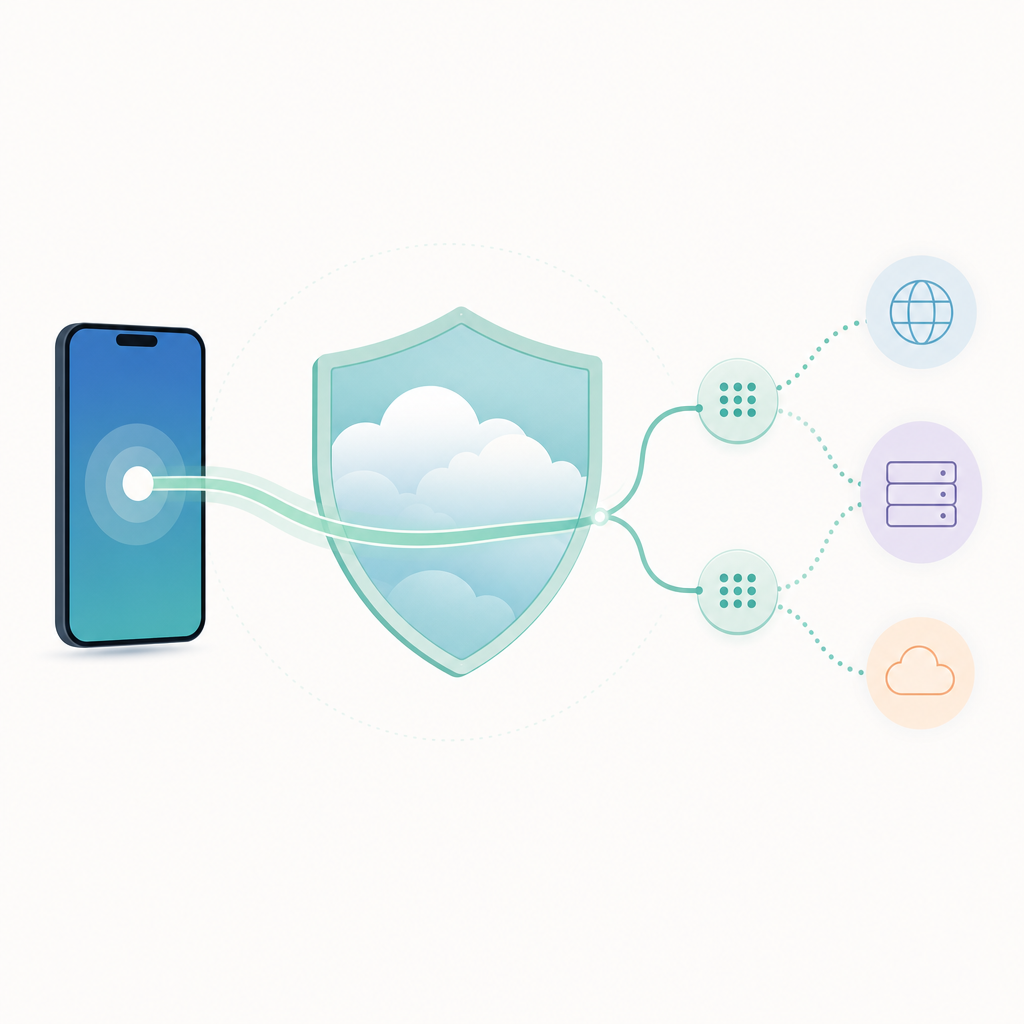
Short answer: If you want to change the IP address that websites and apps see, use a VPN or Warp-style IP changer so your traffic exits through another network. DNS settings are different. They can change who resolves domain names, but DNS alone usually does not hide your public IP address from the service you connect to.
A student on cafe Wi-Fi, a founder logging into a dashboard from an airport, and a parent setting cleaner home DNS are solving related but different problems. One needs IP masking. One needs a safer tunnel. One may only need DNS control.
How to Change Your IP Address on a Phone or Laptop?
Use a VPN or IP changer app when you need a different visible public IP for normal browsing or app traffic. Use Wi-Fi switching, cellular switching, or a router reconnect only when you just need the network to assign a different address and do not need VPN-style privacy.
- Check the current visible IP. Open a trusted IP-check page before turning anything on, and note the country, city, or network shown.
- Turn on the VPN or Warp-style mode. If the app offers locations, pick the practical one.
- Wait for the tunnel to connect. On mobile, the VPN indicator should appear in the system status area or VPN settings.
- Check the visible IP again. If the result did not change, the tunnel may not be active for that connection.
- Test the actual app or site. Some services react to logins, cookies, device fingerprints, payment country, or account history, not only IP address.
What Is an IP Address, in Plain English?
An IP address is the return address your device or network uses on the internet. For privacy decisions, focus on the public IP address that websites, apps, login systems, and security tools can often see.
A VPN changes that outside view by sending traffic through an encrypted tunnel to a VPN server. The site you visit sees the VPN server's IP, while the Wi-Fi owner or local network sees a connection to the VPN service rather than a simple list of every destination. Useful, yes. Invisible, no.
What Is a DNS Changer, and What Does It Actually Change?
A DNS changer tells your phone or computer to use a different DNS resolver when translating a domain name into a network address. It may improve reliability or support filtering, but it does not by itself make your traffic anonymous.
DNS is the internet's lookup step. When you type a domain, your device asks a resolver where that domain lives, then it connects to the returned address. Changing DNS changes who answers that lookup request. It does not automatically change the IP address your device presents when the connection is made.
That is why VPN and DNS controls can work well together. If an app is described as a VPN, Warp, IP, and DNS changer, judge it by whether it separates two jobs: traffic routing through a tunnel and resolver selection for lookups. DNS can help, but DNS alone is not an IP-hiding tool.
How we checked: We reviewed the post against basic network behavior: IP-check pages show the public exit address, device DNS settings affect lookup resolution, and signed-in services can still use account or cookie signals. We did not rely on an app-version-specific feature claim.
VPN vs DNS: Which One Hides Your IP Address?
In the practical VPN vs DNS decision, a VPN changes the IP address a website sees because your traffic exits through the VPN provider's server. DNS only changes the lookup path, so the destination service can still see your network IP when your device connects.
| Need | VPN or IP changer | DNS changer | Trade-off |
|---|---|---|---|
| Make websites see a different IP | Yes, for routed traffic | No | The VPN provider becomes part of the trust chain |
| Use public Wi-Fi with less local exposure | Useful because traffic is tunneled | Limited to DNS lookup behavior | VPNs can add latency on weak networks |
| Change who resolves domains | Sometimes, if DNS is included | Yes | Filtering and speed vary by resolver |
| Fix a site that blocks one network | Often worth trying | Rarely enough | Sites may also use account or device signals |
A simple rule works: use DNS when the lookup layer is the problem, and use a VPN when the visible network path is the problem. If you need both, use an app that makes both settings visible instead of treating privacy as a single mystery switch.
Claim: A VPN can change the visible IP address for traffic routed through its tunnel. Why this matters: DNS settings alone do not change the public exit address used by a connection. Limit: Apps, split-tunnel settings, browser state, and account signals can change what a service sees. Action: Check the visible IP before and after connecting, then test the site or app that matters.
Can I Hide My IP Address Completely?
You can hide your IP address from many websites and apps by using a VPN, but you cannot make yourself invisible. The VPN provider may still process connection metadata, and the destination service can still identify you through logins, cookies, browser state, and device or payment signals.
When someone says they want to hide an IP address, they usually mean one of three things: keep the coffee-shop network from casually seeing destinations, stop a website from seeing the home ISP address, or test how a service behaves from a different network. A VPN can help with those. It cannot remove a post you published, erase a login trail, bypass platform security, or read encrypted message content inside apps such as WhatsApp.
There is also a policy side. Use VPN and DNS tools on networks and accounts you are allowed to use. Employers, schools, streaming services, games, and marketplaces may restrict VPN traffic in their terms or access rules, and changing your IP address does not give permission to evade those rules.
How Do I Change IP on iPhone Without Breaking Normal Browsing?
The cleanest way to change IP on iPhone is to turn on a reputable VPN or Warp-style app, then confirm the visible address changed before you rely on it. If your goal is DNS only, iPhone also lets you configure DNS for a Wi-Fi network, but that is not the same as masking the public IP.
- For IP masking, open the VPN app and enable the VPN, Warp, or IP changer mode.
- Approve the iOS VPN configuration only for an app you trust. That permission lets the app route traffic, so it should not be granted casually.
- Choose a server or region if the app offers one. Auto mode is usually the least fussy option for public Wi-Fi privacy.
- Recheck the visible IP. Do this before assuming the change worked.
- For DNS only, use Wi-Fi settings. In iPhone Wi-Fi settings, the network detail screen includes DNS configuration options. Menu wording can vary by iOS version, but the key point stays the same: DNS changes resolver behavior, not the public IP by itself.
Searches about changing IP on iPhone often mix up three tasks. Turning on a VPN changes the visible exit IP for routed traffic. Switching from Wi-Fi to cellular gives you the mobile carrier's public IP. Changing DNS only affects name lookups.
When Would VPN 111 Make Sense, and When Would It Not?
VPN 111, or any similar VPN and DNS utility, makes sense when you want a simple privacy layer on hotel, airport, cafe, or shared office Wi-Fi, or when you want a different visible IP for general browsing. It is not a cure for malware, phishing, weak passwords, illegal access, or account-level tracking.
Use it for the jobs this class of tool can honestly support: masking the network IP seen by many services when traffic is routed through a VPN-style tunnel, and changing DNS behavior when you want a different resolver. Do not expect it to make a signed-in account anonymous. If you open the same social profile, email inbox, or banking account, that service still knows the account holder.
For readers comparing privacy utilities from Verity apps, use a restraint test. A good IP and DNS changer should explain what changed, let you verify it, and avoid pretending that one toggle solves every privacy problem.
What Should You Check Before Trusting the Change?
The safest test is boring: check your visible IP before and after turning the tool on, then test the site or app you actually care about. If the IP changes but the problem remains, the service is probably using account, cookie, region, payment, device, or risk signals instead of only IP.
Here is a realistic airport example. Before the VPN is on, a dashboard login may see an airport or hotel network. After the VPN connects, the dashboard sees the VPN exit location, but it may still ask for extra verification because the login pattern looks new. That does not mean the IP changer failed. It means modern services rarely trust IP address alone.
Claim: A VPN can change the visible IP address for routed traffic, while a DNS changer alone usually cannot. Limit: The result depends on the app, device settings, and whether the traffic actually uses the tunnel. Action: Verify the visible IP after connecting, and treat DNS settings as a separate privacy control.
Frequently Asked Questions
Does a DNS Changer Hide My IP Address?
No. A DNS changer changes the resolver used for domain lookups, but the website or app can still see the IP address used for the actual connection. Use a VPN or IP changer when the goal is IP masking.
Will a VPN Make Me Anonymous?
No VPN can promise full anonymity. A VPN can hide your home, office, or cafe IP from many destinations, but accounts, cookies, browser state, device signals, and the VPN provider's own systems still matter.
Can I Change My IP Address by Restarting My Router?
Sometimes. Some internet providers assign a new public IP after a router reconnect, while others keep the same address for long periods. A VPN is more predictable when you need a different visible IP immediately.
Is It Legal to Use a VPN on Public Wi-Fi?
In many places, using a VPN for privacy on public Wi-Fi is common, but laws and network rules vary by country, state, workplace, school, and service. This is not legal advice. Use VPNs only for accounts and networks you are authorized to access, and check local rules when the stakes are higher.
Why Did a Website Still Recognize Me After I Changed IP?
Because IP address is only one signal. If you stay signed in, use the same cookies, or keep the same browser and device profile, the service may still connect the session to you.