
A Step-by-Step Guide to Controlling Mobile Data Drain: Inside the Upgraded DNS Ad-Blocker

How Silent Background Tracking is Costing You
Just last month, while analyzing network packets for a remote engineering team, I noticed something alarming. Even when their smartphones were sitting idle on a desk, the devices were constantly, silently pinging dozens of advertising servers. Over my eight years in cybersecurity, I've watched online tracking evolve from simple website cookies to persistent, system-wide data harvesting. This constant background noise wasn't just invading their privacy; it was visibly draining their batteries and chewing through their monthly data plans.
To combat this, you need tools that operate at the core of your connection. VPN 111: Warp IP DNS Changer is a VPN, DNS changer, and ad blocker application designed for mobile users who want to secure their traffic, halt tracking scripts, and reduce data consumption across all countries. It is built specifically for everyday users, remote freelancers, and frequent travelers who need reliable performance without technical friction.
Before we proceed, it helps to know who this setup is not for. If you are an enterprise IT administrator looking to configure complex SASE (Secure Access Service Edge) architecture or monitor local server traffic via PRTG dashboards, this consumer-focused tool is not your target solution. This guide is for individuals looking to instantly clean up their daily mobile browsing experience.
The necessity for this kind of protection is clearer than ever. According to recent mobile industry reports, the global mobile advertising industry has grown into a $380 billion ecosystem. That revenue is generated by millions of background requests firing from our devices daily. Furthermore, 2024 mobile market trends highlight a massive shift toward "data-light" user behaviors, particularly as network congestion increases. People are actively seeking ways to reduce unnecessary data consumption just to keep their phones running smoothly.
If you are ready to stop the data drain, here is a practical, step-by-step walkthrough of how to use improved DNS-level ad-blocking to secure your mobile connection.
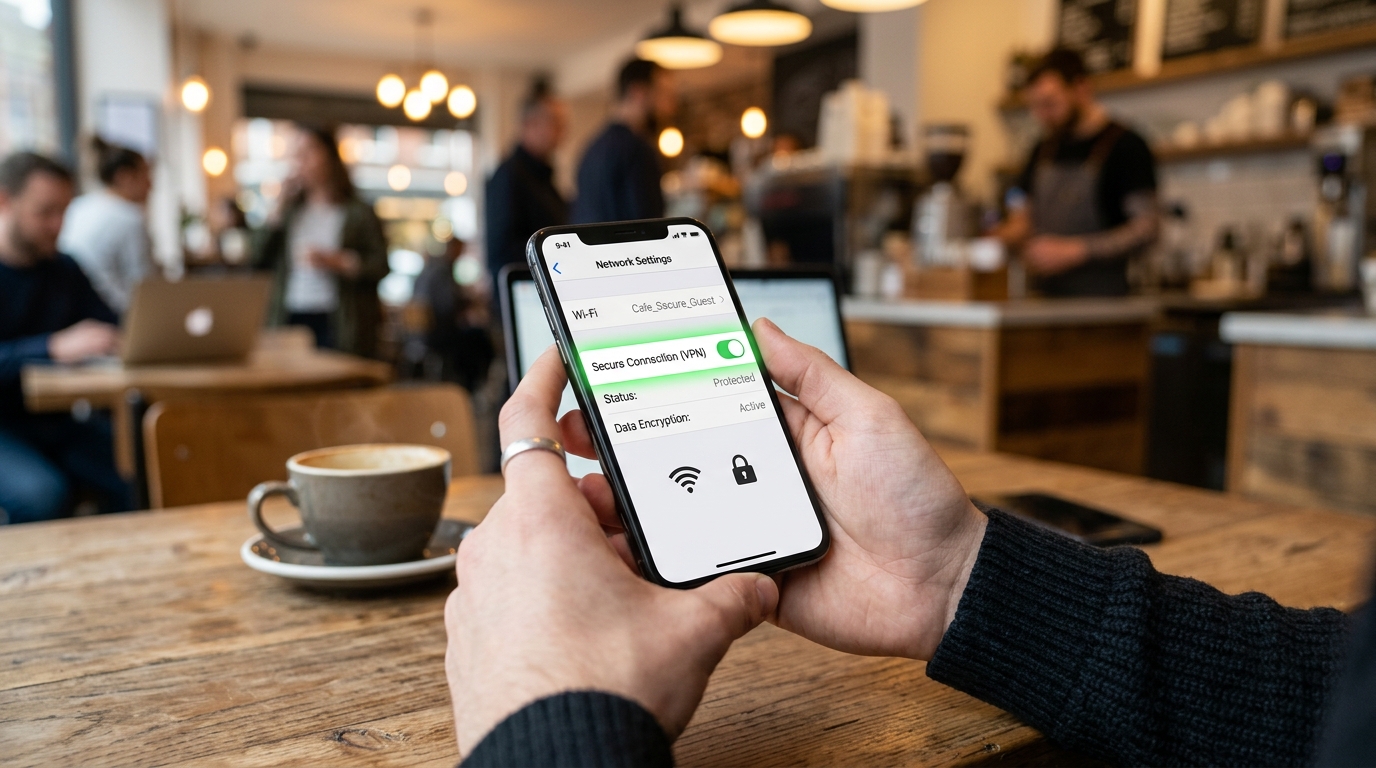
Step 1: Audit Your Existing Mobile Security Habits
Most people attempt to solve mobile tracking by downloading a standalone private browser. You might currently use tools like the Opera browser, Brave, or Aloha to read articles without pop-ups.
The problem is that a private browser only protects the traffic happening inside that specific window. If you close the app to check the weather, open a social feed, or play a game, your phone instantly resumes sending data to third-party trackers over your wireless internet connection. Fragmenting your privacy across different apps leaves massive blind spots. As my colleague Barış Ünal explained in a recent discussion on the true cost of mobile tracking, stopping background drain requires moving beyond single-app solutions and upgrading your built-in DNS infrastructure.
Step 2: Understand Why Traditional Tunnels Aren't Enough
When users realize a browser isn't enough, they often head to the app store and search for terms like vpn free iphone, or they look up heavy-hitters like Nord VPN, Express VPN, Proton VPN, and Hotspot Shield. While these tools successfully encrypt your traffic, many basic profiles—especially the free ones heavily marketed as super vpn or potato vpn—do absolutely nothing to block the advertising payloads themselves.
They simply create a secure tunnel for the ads to travel through. The $380 billion ad industry still gets your data; it just gets encrypted on the way out. To actually achieve a "data-light" experience, you must stop the requests before they execute.
Step 3: Activate Network-Level DNS Filtering
This is where the upgraded architecture in VPN 111 changes the daily experience. Instead of just rerouting your IP address, the application actively cross-references outgoing requests against known tracking and advertising domains.
Here is how to set it up effectively:
- Bypass the Basic Toggles: Open the app and locate the DNS changer settings. Don't just settle for a generic connection.
- Enable Ad-Blocking DNS: Select the specific DNS profile optimized for ad and tracker blocking. This operates similarly to a system-wide 1 1 1 1 setup but with aggressive, built-in filtering for malicious domains.
- Confirm the Protocol: Ensure the app is using an efficient protocol like WireGuard. This ensures the filtering happens in milliseconds, preserving your battery life.
Once activated, the DNS changer acts as a bouncer. When a background app tries to load an invisible tracking pixel, the DNS server instantly drops the request. The ad never loads, the data is never consumed, and your phone processes less junk.

Step 4: Test the Handoff Between Connections
The true test of any mobile privacy tool is how it handles network transitions. You likely start your day on your secure home wifi, commute using cellular data, and perhaps connect to a coffee shop's public wireless internet later in the afternoon.
Many legacy tools—like older versions of PIA VPN or isolated apps like Opera GX—struggle to maintain their ad-blocking rules during these handoffs. When testing your new configuration, try physically walking out of your home wifi range while loading a data-heavy website. The transition should be invisible. If the ad-blocking DNS is integrated correctly at the system level, you won't see a sudden influx of banner ads or experience a dropped connection.
For users who frequently manage multiple digital identities—such as those using tools from Verity to manage temporary SMS codes or alternative emails—maintaining this unbroken, tracker-free network connection during handoffs is highly critical to preventing cross-device profiling.
Practical Q&A on Unified Network Protection
To help clarify the transition to network-level blocking, here are a few practical questions I frequently receive from users auditing their mobile setups:
Does this replace my need for a separate secure web browser?
Yes, for most everyday use cases. When you apply ad-blocking and DNS filtering at the system level, your default browser (whether that is Safari, Chrome, or anything else) automatically benefits from the exact same tracker prevention. You no longer have to juggle multiple apps to read an article peacefully.
Will aggressive DNS filtering slow down my connection?
Actually, it typically improves perceived loading times. By dropping the requests for heavy video ads and background analytics scripts before they execute, the web pages and apps you use have less data to download. This directly supports the "data-light" efficiency that modern mobile users require.
Why do I still see some sponsored content on social media apps?
System-wide DNS blockers excel at stopping third-party ad networks (e.g., a banner ad on a news site loaded from a separate server). However, native ads (like sponsored posts injected directly into your Instagram or X feed) are hosted on the same servers as the actual content. Blocking those specific domains would break the app entirely.
Taking Ownership of Your Device's Bandwidth
We have long passed the era where typing von (a common typo for VPN) into an app store and downloading the first colorful shield icon was enough to guarantee privacy. The sheer volume of hidden network traffic on modern smartphones requires a proactive, filtering-first approach.
By stepping away from isolated browsers and adopting a network filter, you aren't just hiding your location—you are actively reclaiming your device's processing power and data allowance. Take five minutes today to check your background data usage, activate your DNS filter, and experience what a clean, quiet mobile connection actually feels like.